



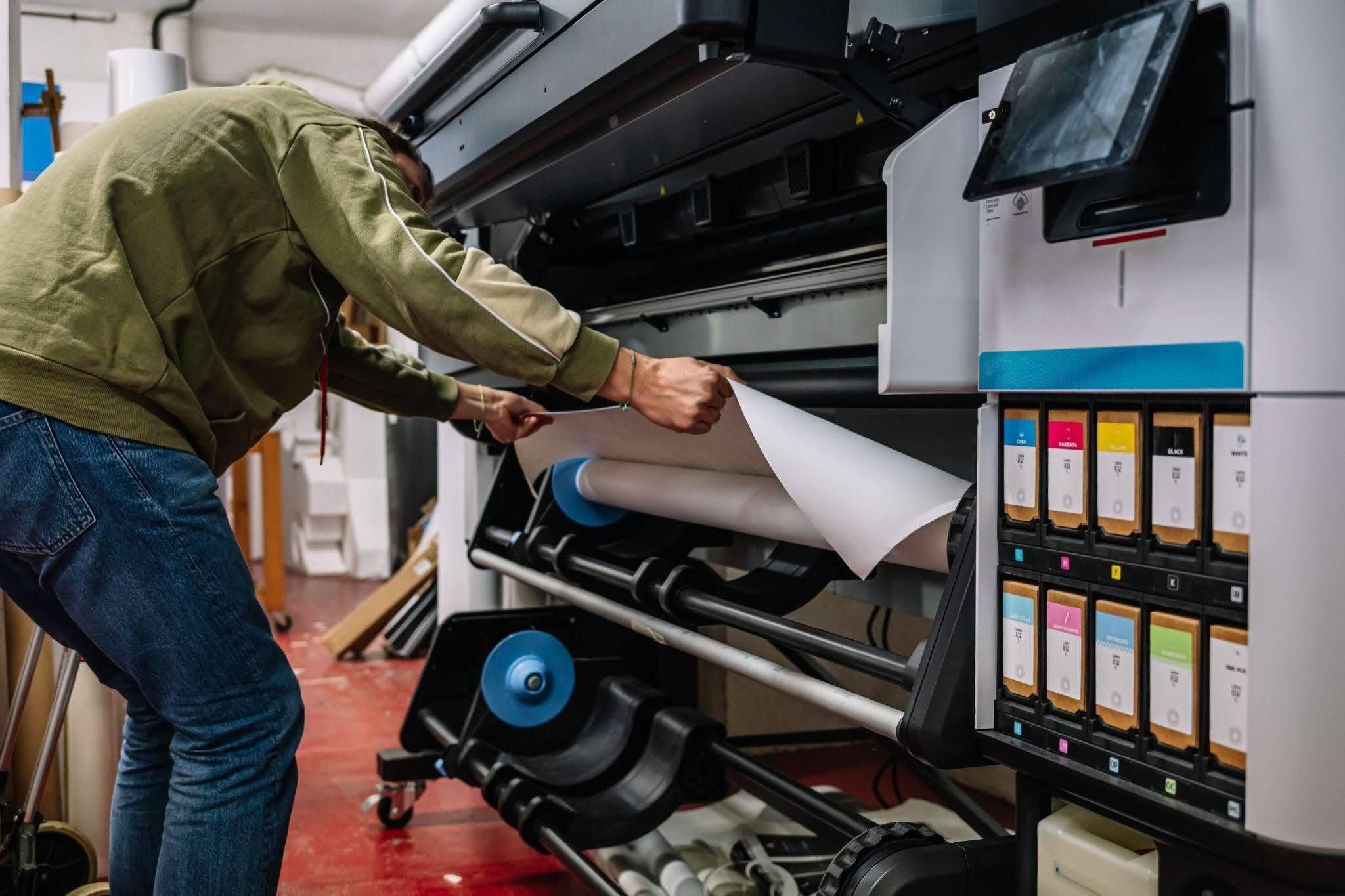
Most printing mistakes don’t happen on the press. They often begin with the files and artwork prepared beforehand. Modern software gives designers incredible flexibility and creative control. However, turning those digital designs into a high-quality printed piece requires careful preparation.
Details like color mode, image resolution, bleeds, margins and file format can all affect the final product. Missing information or improperly prepared files can also lead to revisions that delay production and put deadlines at risk.
Taking the time to prepare your files correctly can help avoid these common issues and ensure your project moves smoothly from screen to press.
Start with the Right Color Mode
The way computers and printing create color is fundamentally different. Computers use the RGB color model, which stands for red, green and blue. Every color you see on a screen is created by combining different amounts of these three colors.
Printed color uses the CMYK color model, which stands for cyan, magenta, yellow and black. CMYK is a subtractive color process where each ink absorbs certain wavelengths of visible white light. The light that isn't absorbed reflects off the paper, producing the final colors you see..
This is important because it means that if a file with RGB color is printed, it may look different on the page than it did on the screen. To ensure the colors you want printed match what you see on the screen, you should save your design files with the CMYK mode selected if possible. Alternatively, you can utilize the Pantone Matching System. This is a color reproduction standard that allows for precise matching and color consistency across the printing process.
Keep Your Images Crisp with the 300 DPI Rule
Image resolution essentially dictates the ultimate clarity of your final printed piece. In commercial printing resolution is measured in DPI, or dots-per-inch. Describing how many microscopic dots of ink a printer places within one linear inch of paper. The higher the DPI, the sharper and more detailed your print will be.
A common trap is using images saved directly from the internet. Web graphics are almost always compressed to 72 DPI, so they load quickly on a screen. While they might look great on your monitor, they completely lack the dense pixel data required by physical printing machinery.
To avoid blurry prints and guarantee crisp, professional results, always verify that your photographs and complex graphics are set to a minimum of 300 DPI when scaled to their final physical print size.
Keep Bleeds & Margins in Mind
Unlike the precise digital images displayed on a computer screen, physical printing involves small amounts of variability due to mechanical tolerances. This means that elements placed directly along the edge of a design may shift slightly during printing or trimming. Without a bleed, this can leave an unwanted white line along the edge of the finished piece.
To account for this variability, commercial printing uses specific layout guidelines. Bleeds are areas of artwork that extend beyond the trim line. This ensures the ink reaches the edge of the finished piece even if the cut shifts slightly. Margins are the space between important text or images and the edge of the page. Keeping important content within the margins and adding a 0.125-inch bleed helps account for normal variation during the printing and trimming process.
Choose the Right File Format
Not all file types are created equal when it comes to commercial printing. Different file formats handle and store image data in different ways. For example, JPG and JPEG files typically use compression to reduce file size. This can be useful for web applications where smaller files load faster. However, excessive compression can reduce image quality and result in lower-quality prints.
For the best print quality, we recommend using:
- High-resolution PDF/X files for most print projects.
- Adobe Illustrator EPS files for vector graphics, logos and typography.
- TIFF files for high-resolution photography and image-heavy artwork.
Ready to submit your file? Complete our online file transfer module and we’ll send you a confirmation email to ensure we’ve received it. All Ways Graphics is here to make printing simple and easy.


